
Subtitle Generator for Shorts
Upload a vertical clip and get word-by-word subtitles burned into it, sized and positioned for the YouTube Shorts feed — free, no watermark, and out at full 9:16 resolution.
A subtitle generator for YouTube Shorts has a narrower brief than a general one: three or four words a line, timed to the syllable, kept clear of the Shorts title, the handle and the action rail. The kind of subtitles that hold a scroll instead of interrupting it.
- Word-by-word timing
- 9:16, never cropped
- Safe-zone aware
- Free, no watermark
Caption Maker is live. Create a free account and caption your first Short in minutes.
Free to start. No credit card, no watermark on your exports.
Rendered into the picture, so the text is there whether or not anyone taps CC.
Subtitles that survive a vertical feed
A Short is watched muted, at speed, on a phone held one-handed, with the platform drawing its own UI over three edges of your video. Subtitles that ignore that get half-covered or scrolled past.
Word-by-word highlighting solves the reading problem: the viewer always knows which word is being said, so they can look away at the picture and back at the text without losing the thread.
- One word lit at a timeWord-level timestamps drive a karaoke-style highlight, so the line is readable in a glance rather than a paragraph to parse.
- Placed inside the safe zoneCaptions sit in the middle third by default, away from the Shorts badge at the top, the handle and progress bar at the bottom, and the rail on the right.
- Sized for a phone, not a monitorFont weight and outline are set so the text stays legible against a busy background at the size a Short is actually watched.
Grow Your YouTube, Instagram & TikTok With AI Subtitles
Auto-generate accurate, viral captions in seconds. Boost engagement and watch time across YouTube Shorts, Instagram Reels, and TikTok clips.
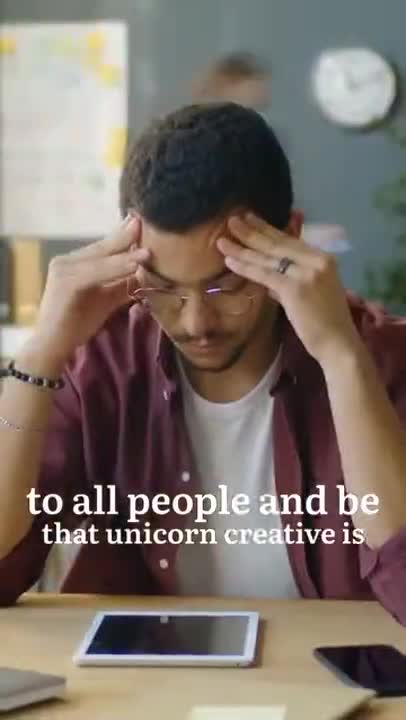
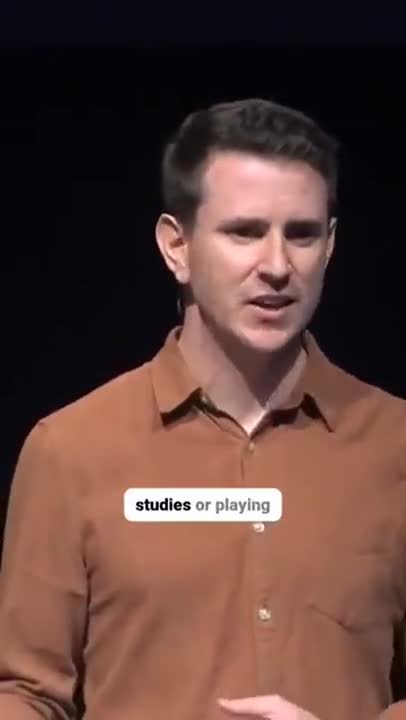
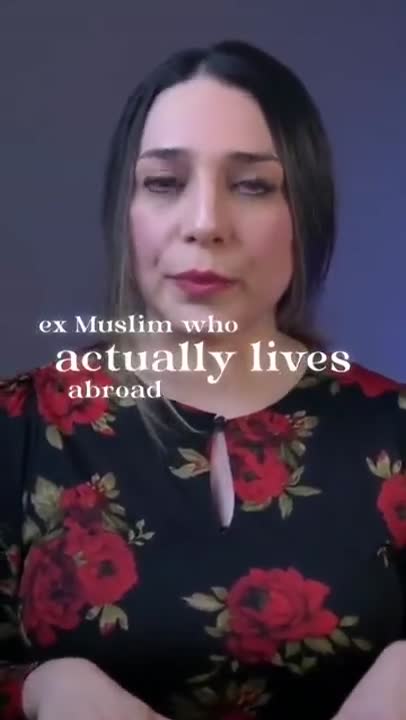
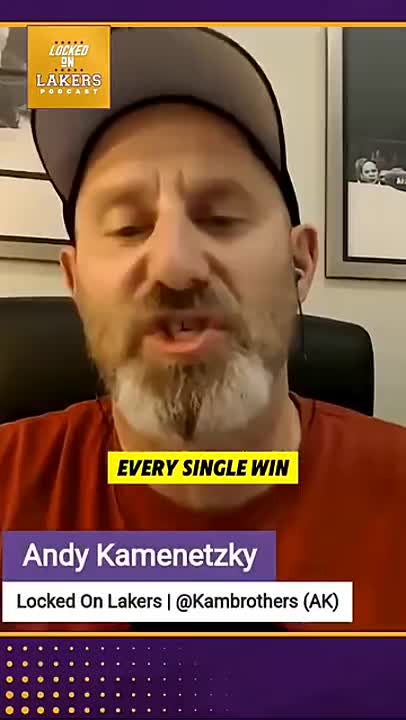
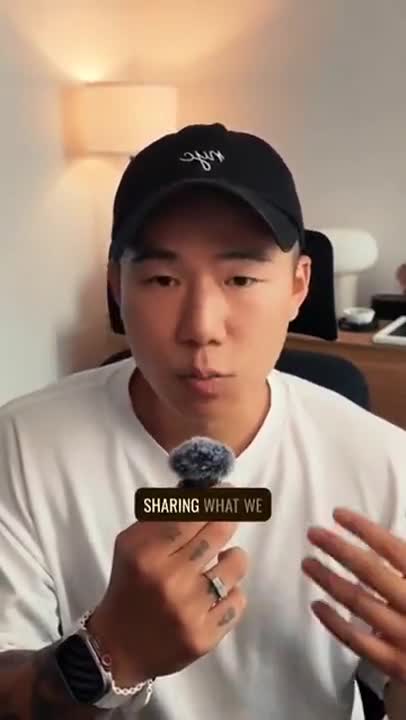
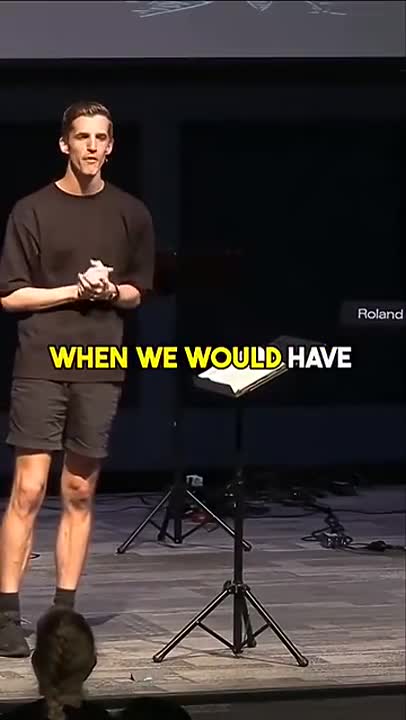
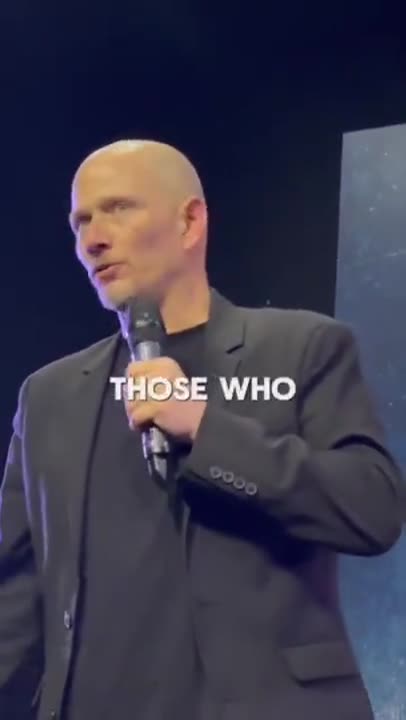
Everything short-form subtitles have to get right
A Short gives you about one second to be worth watching, so an auto subtitle generator for Shorts has more to get right than a general one. These are the details that decide whether the subtitles help or get in the way.
Timed to the syllable
Every word carries its own timestamp, so highlighting lands on the beat instead of a half-second behind the audio — the tell that gives cheap auto-captions away.
Three-word lines by default
The script is broken into the short groups short-form viewers actually read, cut on natural pauses so a phrase is never split across two cards.
Safe zones built in
Default placement dodges the Shorts badge, the title, the channel handle, the description line, the progress bar and the right-hand action rail.
A look that is yours
Font, weight, colour, outline, shadow, highlight colour and vertical position are all adjustable — and reusable, so a series of Shorts stays visually consistent.
Full quality out
Your 1080x1920 comes back as 1080x1920. No downscale, no crop to fit a template, no re-encode that softens the picture.
No watermark on a free export
Nothing is stamped on the frame and no end card is appended. The subtitles are the only thing added to your video.
How to add subtitles to a YouTube Short
Vertical clip in, captioned Short out, ready to upload.
- 1
Upload the vertical clip
Drop in your 9:16 export straight from CapCut, Premiere, Final Cut or your phone. No cropping to a supported shape and no re-encode first.
- 2
Generate word-by-word subtitles
The subtitle generator transcribes the audio and timestamps every word, then breaks the script into three- and four-word lines that change in time with the speech.
- 3
Style, position and export
Pick a caption look, keep it inside the safe zone with one control, and download the finished MP4 at full resolution with the subtitles burned in.
Why YouTube Shorts subtitles matter more than long-form captions
The Shorts feed is a muted, autoplaying, thumb-driven surface. A viewer arrives mid-sentence, has no idea what the video is, and decides in about a second whether to keep watching or flick past. Sound is off by default and often stays off for the entire session.
That makes on-screen text the primary channel, not a secondary one. The hook has to be readable before it is audible, because for most of the people who see the Short it will never be audible at all. Subtitles are how the first line of your script reaches someone who has not turned the sound on and never will.
They also carry the middle. Retention on a Short falls off in the first few seconds, and text moving in time with speech gives the eye something to track — a reason to stay through the setup and reach the payoff.
Muted by default
Most Shorts impressions happen with no audio. Without subtitles, the script simply does not reach those viewers.
No captions button worth pressing
The Shorts player buries captions. Burned-in text is the only version a scrolling viewer will ever see.
Retention through the setup
Moving text holds attention through the seconds before the payoff, which is exactly where Shorts lose people.
Reposted intact
Burned-in subtitles travel with the file, so the clip still works when it is downloaded, cross-posted or stitched.
The 9:16 safe zone, in plain numbers
Vertical platforms all draw their own interface over your video, and they draw it in roughly the same places. Anything you put underneath is a gamble on the viewer having the same phone as you.
Treat the top 12% of the frame as spoken for: the Shorts badge, the search icon and, on some layouts, the video title live there. The bottom 20% belongs to the channel handle, the description line, the sound attribution and the progress bar. The right-hand 15% is the action rail — like, dislike, comment, share, remix and the channel avatar.
What is left is a tall column through the middle of the frame, and that is where subtitles belong. Sitting them between 40% and 60% of the height keeps them clear of every element on every current layout, and it happens to be where the eye already is.
Line length matters just as much as position. A wide line in a narrow frame either shrinks below readable size or wraps into three rows that swallow the picture. Three or four words a line keeps the text large and the video visible.
One clip, three feeds
Almost nobody publishing Shorts publishes only Shorts. The same vertical cut usually goes to Instagram Reels and TikTok within the same hour.
The good news is that the three platforms pose the same problem: a 9:16 frame, muted autoplay, a right-hand action rail and chrome across the top and bottom. Subtitles that are safe on Shorts are safe on all three, and a single burned-in export can be uploaded to each without a second pass.
The differences that remain are cosmetic and worth a thought rather than a re-edit. TikTok tends to carry a slightly taller bottom overlay because of the sound attribution. Reels place their caption text and audio credit low as well. Keeping subtitles in the middle third handles all of it.
Transcribe once, style once, export once, post three times.
Where else your clips go
Same vertical export, tuned page by page.
Frequently Asked Questions
Placement, line length, quality and the watermark question.
Is this AI subtitle generator for Shorts free?
Yes, end to end. Upload a vertical clip, generate the subtitles, style them and download the finished Short. No card, no trial window, and no export credits to top up.
How do I add captions to YouTube Shorts?
Upload your finished vertical clip here, let the captions generator for Shorts transcribe and time it, then download the MP4 with the text burned in and post that file. Because the captions are part of the picture there is nothing to switch on and nothing to upload separately — and the captions generator for YouTube Shorts is free, with no watermark on the export.
Will there be a watermark on my Short?
No. The file you download is your clip at full 9:16 resolution with subtitles rendered into it and nothing else — no corner logo, no end card, no watermark on the preview or the export.
Should Shorts subtitles be burned in or uploaded as a file?
Burned in. The Shorts feed autoplays muted and thumb-scrolls fast, and the captions button is buried where a scrolling viewer will never press it. Text painted into the frame is the only version that reliably gets read — and it survives if the clip is downloaded and reposted elsewhere.
Where should subtitles sit in a 9:16 frame?
In the middle third, roughly between 40% and 60% of the height. The top carries the Shorts badge and title, the bottom carries the channel handle, description and progress bar, and the right edge carries the like, comment and share rail. Anything placed there gets covered on some devices.
How many words should be on screen at once?
Three or four. Short-form viewers read in glances between watching the picture, so a full sentence held on screen forces them to choose. Small groups of words that change with the speech keep both the visual and the line readable.
Does it work for Reels and TikTok too?
Yes — the frame, the styling and the safe zones are the same 9:16 problem, and one export can be posted to all three. If you publish mainly to TikTok, the TikTok page covers that platform in its own detail.
Is my Short re-encoded or downscaled?
It comes back at the resolution and aspect ratio you uploaded. Nothing is cropped to fit, nothing is letterboxed, and 1080x1920 goes in and comes out as 1080x1920.
Can I edit my captions before exporting?
Yes. Correct the transcript, adjust timings, choose a caption style and then export the finished video or a clean SRT or VTT file.
Do I need an account to use Caption Maker?
Caption Maker is live and free to start. Create an account with your email or your Google account, and you can upload, caption and export straight away.
Caption your first Short today
Caption Maker is live. Create a free account and export your first captioned Short today.
- No Credit Card Required
- GDPR Compliant
- Secure Upload