
Thai Captions for TikTok
Add Thai captions to any TikTok automatically. Upload the vertical clip, get word-by-word Thai subtitles timed to the speech and burned into the frame — free, no watermark, full 9:16 quality out.
Thai short-form captions are broken only at word boundaries the transcript has identified, limited by character count, and rendered in a font with proper Thai shaping so the marks above and below the line are not clipped in a 9:16 frame.
- Thai auto-detected
- Word-by-word timing
- 9:16 safe zones
- Free, no watermark
Caption Maker is live. Create a free account and caption your first Thai TikTok in minutes.
Free to start. No credit card, no watermark on your exports.
Grow Your YouTube, Instagram & TikTok With AI Subtitles
Auto-generate accurate, viral captions in seconds. Boost engagement and watch time across YouTube Shorts, Instagram Reels, and TikTok clips.

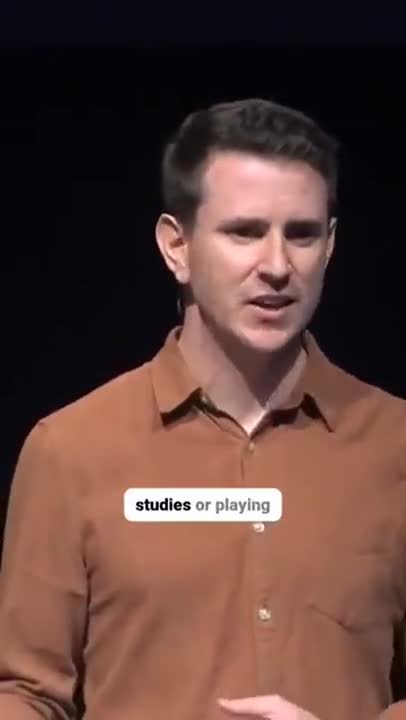


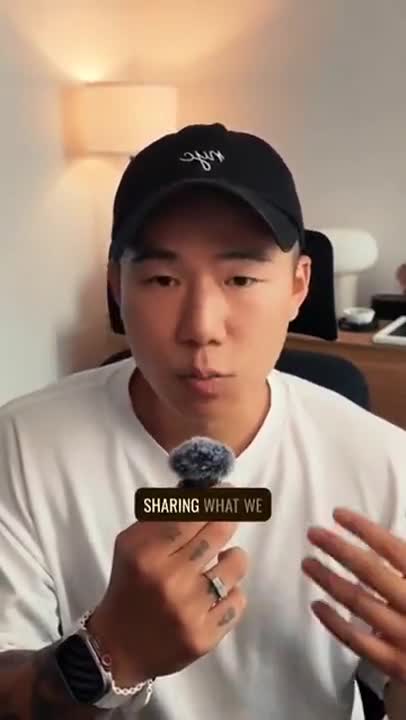
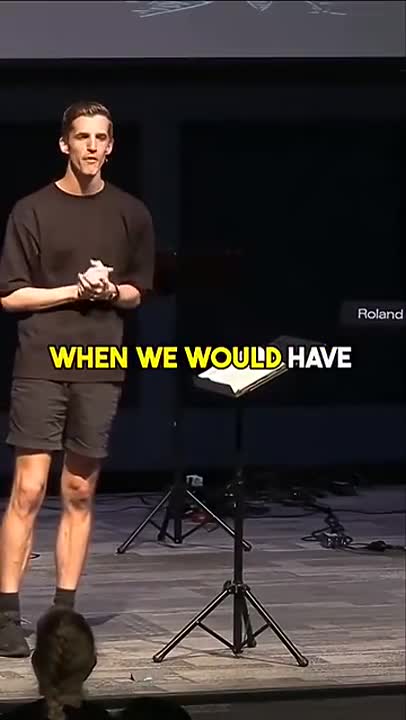
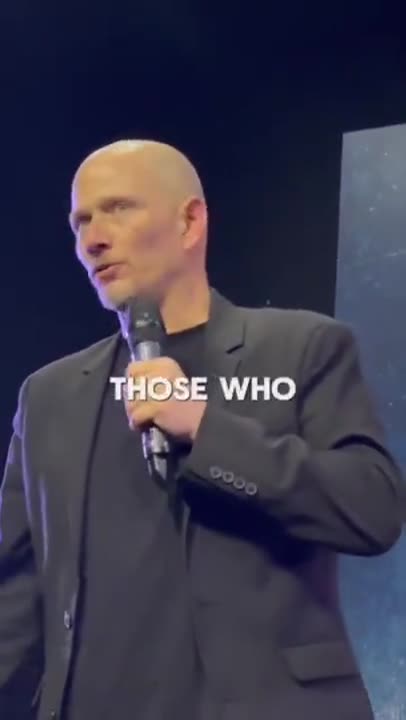
What Thai captions for TikTok have to get right
Two problems at once: the TikTok frame, and Thai itself. These are the details that decide whether the captions help or get in the way.
Clear of the TikTok interface
TikTok stacks the username, caption, hashtags and sound ticker over the bottom of the frame and the action rail down the right. Thai captions default to the middle third so nothing is hidden.
Timed to the word
Word-level timestamps drive the highlight, so the text stays on the beat through fast speech and quick cuts.
Burned in, in your style
TikTok's auto-captions are off by default, limited by language and rendered in TikTok's own look. Thai text rendered into the picture is there for every viewer, in the font and colour you chose.
Breaks at real word boundaries
Thai is written without spaces, so a subtitle line can only break where a word ends. The transcript finds those boundaries so no line cuts a word in half.
Tones from context and sound
Five tones distinguish words that are otherwise identical. The transcript chooses the spelling — and the tone marks and consonant class that encode it — from the audio and the sentence.
How to add Thai captions to TikTok
Vertical clip in, captioned video out, ready to post.
- 1
Upload the vertical clip
Drop in your 9:16 export from CapCut, your phone or TikTok itself. No cropping to a template and no re-encode first.
- 2
Generate Thai captions
The model transcribes the Thai audio into Thai script, works out where the word boundaries fall so lines can break correctly, and times each line to the frame. Lines are then broken into the short groups short-form viewers actually read.
- 3
Style, position and export
Pick a caption style, keep it inside the TikTok safe zone with one control, and download the MP4 with Thai captions burned in — then upload it to TikTok as normal.
Why Thai TikToks need burned-in captions
TikTok is watched on a phone, often muted, and always at speed. A Thai-speaking viewer decides in the first second whether to keep watching, and for a large share of them the sound never comes on. Captions are the version of your script that reaches those viewers, and they are also what the For You algorithm rewards: watch time goes up when people can follow the video without audio.
TikTok's own captions have improved but they are a per-video toggle, unavailable in many languages, and drawn in TikTok's style over your video. Captions burned into the frame are yours — font, colour, highlight and position — and they stay with the file when it is downloaded, duetted, stitched or cross-posted to Reels and Shorts.
The interface takes up more of the frame on TikTok than on any other vertical platform. The username, caption, hashtags and sound ticker occupy the bottom quarter; the rail takes the right edge; a sticker or a duet layout can take more. Default placement here is the middle third, and you can move the captions anywhere that is still clear.
Muted by default
A large share of TikTok views happen with no audio. Captions are how the words reach those viewers.
Your style, not TikTok's
Font, colour, highlight and position are yours to set, and reusable so your videos look like a series.
Survives duets and stitches
Burned-in captions travel with the file, so the clip still works when it is reused.
Full 9:16 out
1080x1920 in comes back as 1080x1920 — no crop, no downscale, no watermark.
Thai on a 9:16 screen
Thai short-form captions are broken only at word boundaries the transcript has identified, limited by character count, and rendered in a font with proper Thai shaping so the marks above and below the line are not clipped in a 9:16 frame.
The transcription is the same one behind the Thai subtitle generator: the model transcribes the Thai audio into Thai script, works out where the word boundaries fall so lines can break correctly, and times each line to the frame. For TikTok, the result is then split into three- or four-word cards and rendered with a font that has the full Thai character set, so nothing falls back to a box or a smudge at phone size.
More Thai captions, and more languages
The other places this Thai export can go, and the languages people caption most often for TikTok.
Frequently Asked Questions
Specific to Thai on TikTok.
How do I add Thai captions to a TikTok video?
Upload the vertical clip here, let the transcription generate and time the Thai captions, style them, and download the MP4 with the text burned in. Upload that file to TikTok as normal — nothing to switch on in the app.
Does TikTok auto-generate Thai captions?
TikTok's auto-captions are a per-video toggle, support a limited set of languages, and render in TikTok's own style. Burned-in Thai captions from Caption Maker show for everyone, look the way you chose, and can be corrected before you post.
Is there a watermark on the video I download?
No. The file is your clip at full resolution with the captions rendered in and nothing else — no logo, no end card, no watermark.
Where should captions sit on a TikTok?
In the middle third of the frame. The bottom quarter carries your username, caption, hashtags and sound ticker, and the right edge carries the action rail. The default placement here stays clear of both.
Can I use the same export for Reels and Shorts?
Yes. The frame, safe zones and styling are the same 9:16 problem, so one captioned export can go to all three.
Thai has no spaces between words. Where are lines broken?
At word boundaries, which the transcript identifies as part of transcription. No line is ever broken inside a word.
Are tone marks written correctly?
Yes. The spelling, including tone marks and consonant class, is chosen from the audio and from context, and exported as UTF-8.
Can I edit my captions before exporting?
Yes. Correct the transcript, adjust timings, choose a caption style and then export the finished video or a clean SRT or VTT file.
Do I need an account to use Caption Maker?
Caption Maker is live and free to start. Create an account with your email or your Google account, and you can upload, caption and export straight away.
Caption your Thai TikTok now
Caption Maker is live. Create a free account and add Thai captions to your next TikTok in minutes.
- No Credit Card Required
- GDPR Compliant
- Secure Upload